Setup guide

Set up your Tagling in minutes.

From the moment your tag arrives to the moment a kind stranger scans it — here's exactly how it works.

Set up your tag

Four short steps. Once your pet's profile is live, every scan reaches you instantly.

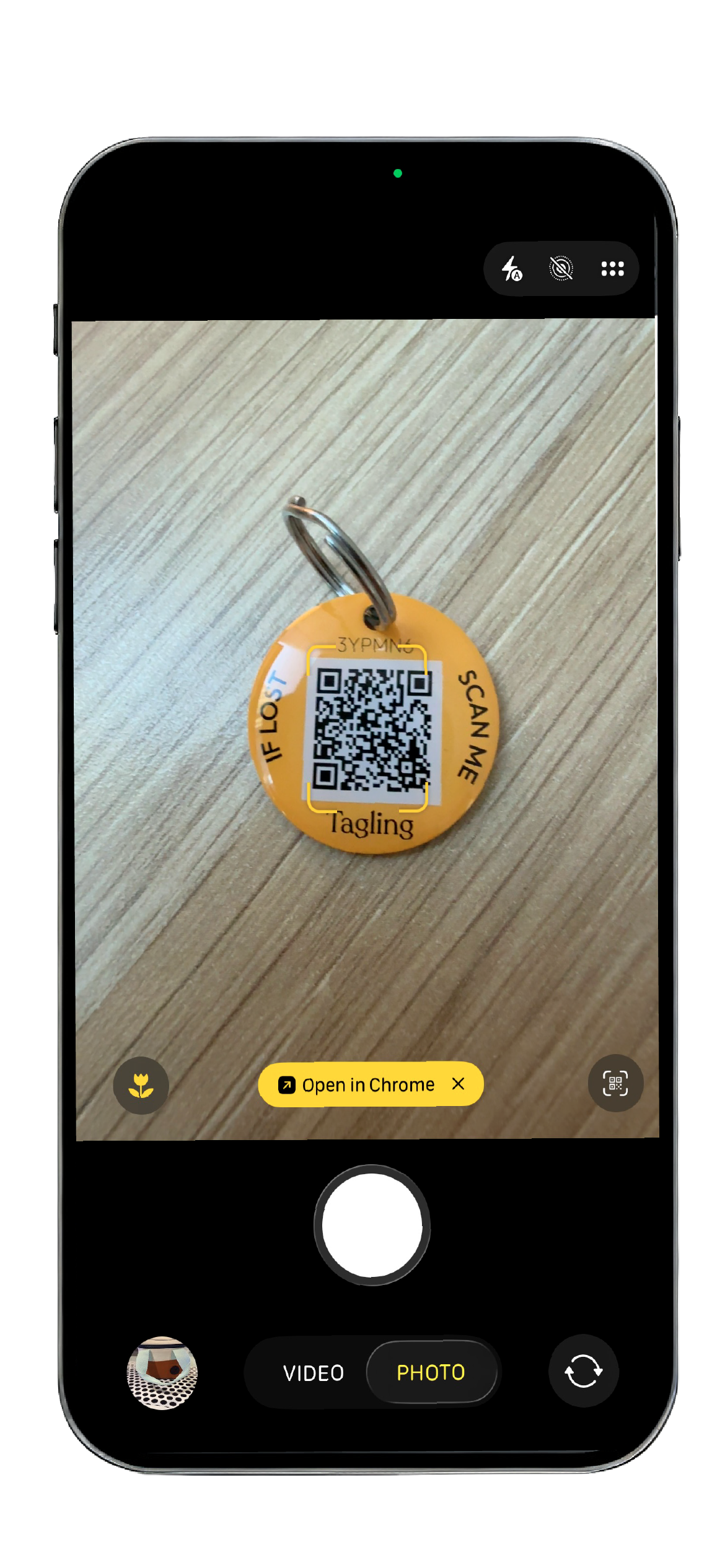
Phone camera scanning the QR on a Tagling tag

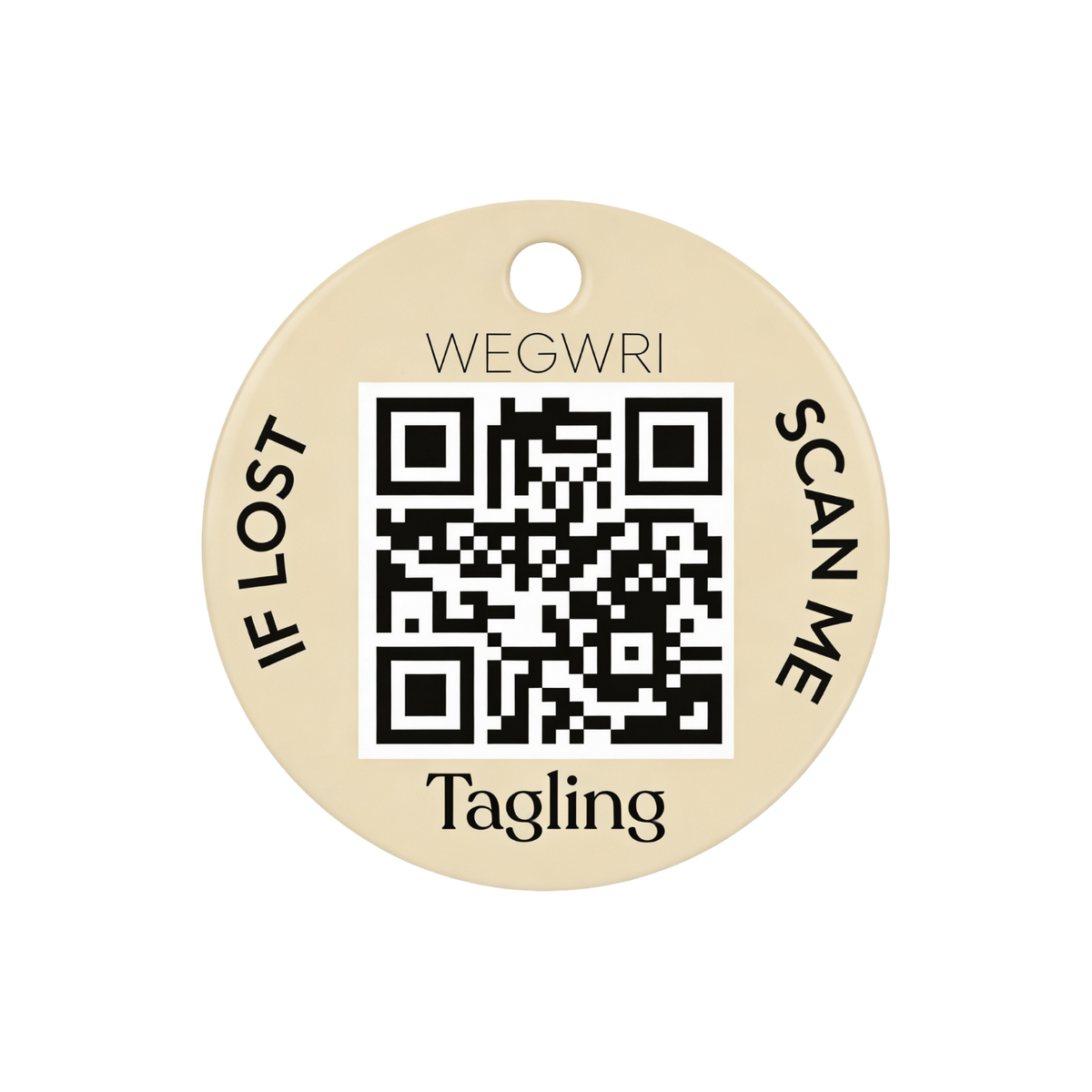
Scan the QR on your new tag

Point your phone's camera at the QR on the back of your Tagling. The setup page opens in your browser — no app to download.

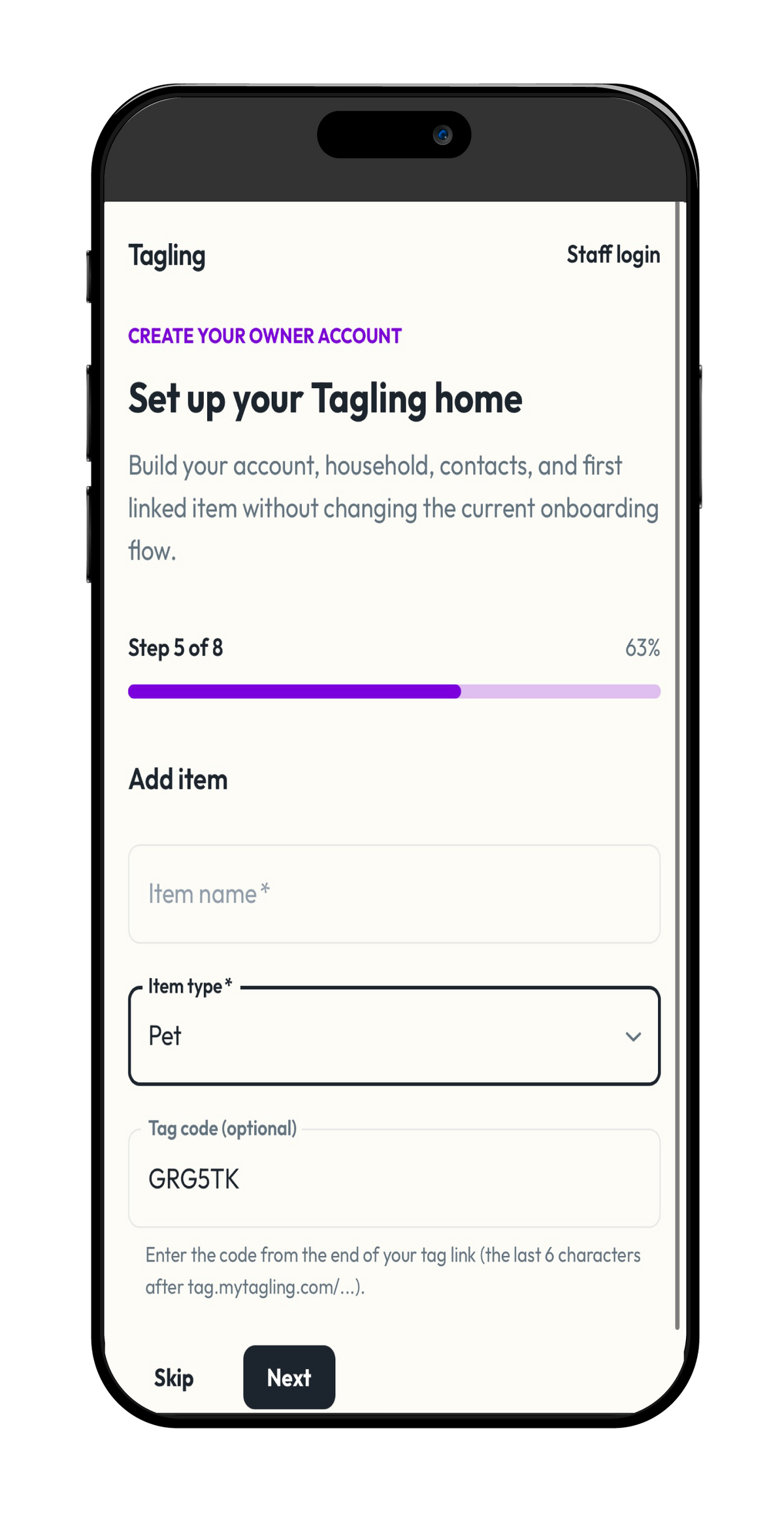
App screen showing the create-pet-profile form

Set up your household and pet profile(s)

Add a name, a photo, and any medical details that might matter to a vet. The more you share, the easier a reunion gets — but everything is optional.

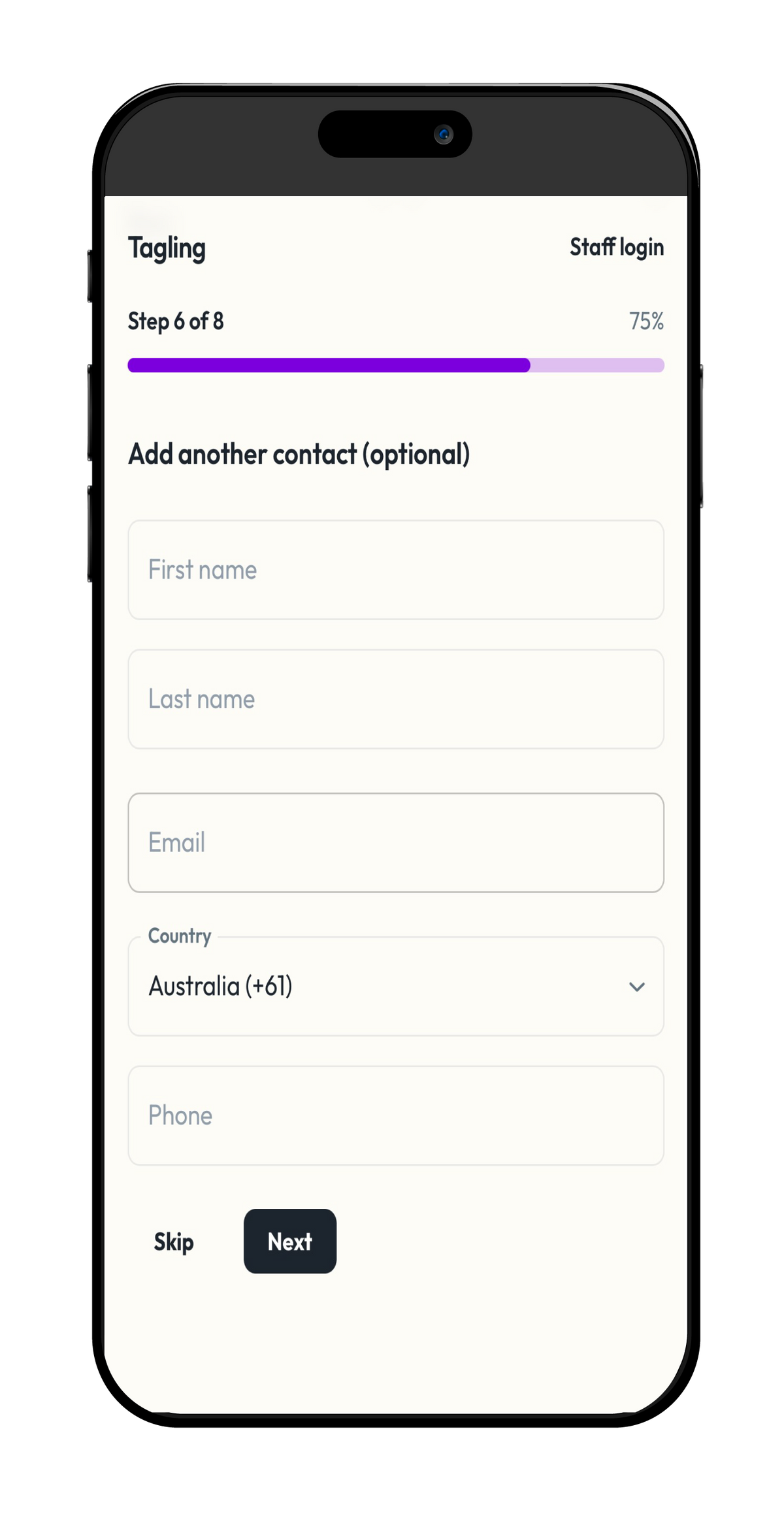
App screen showing the emergency contacts list

Add your contacts

Up to eight people get an instant SMS and email the moment your tag is scanned. Partner, neighbours, dog walker — whoever can help bring them home fastest.

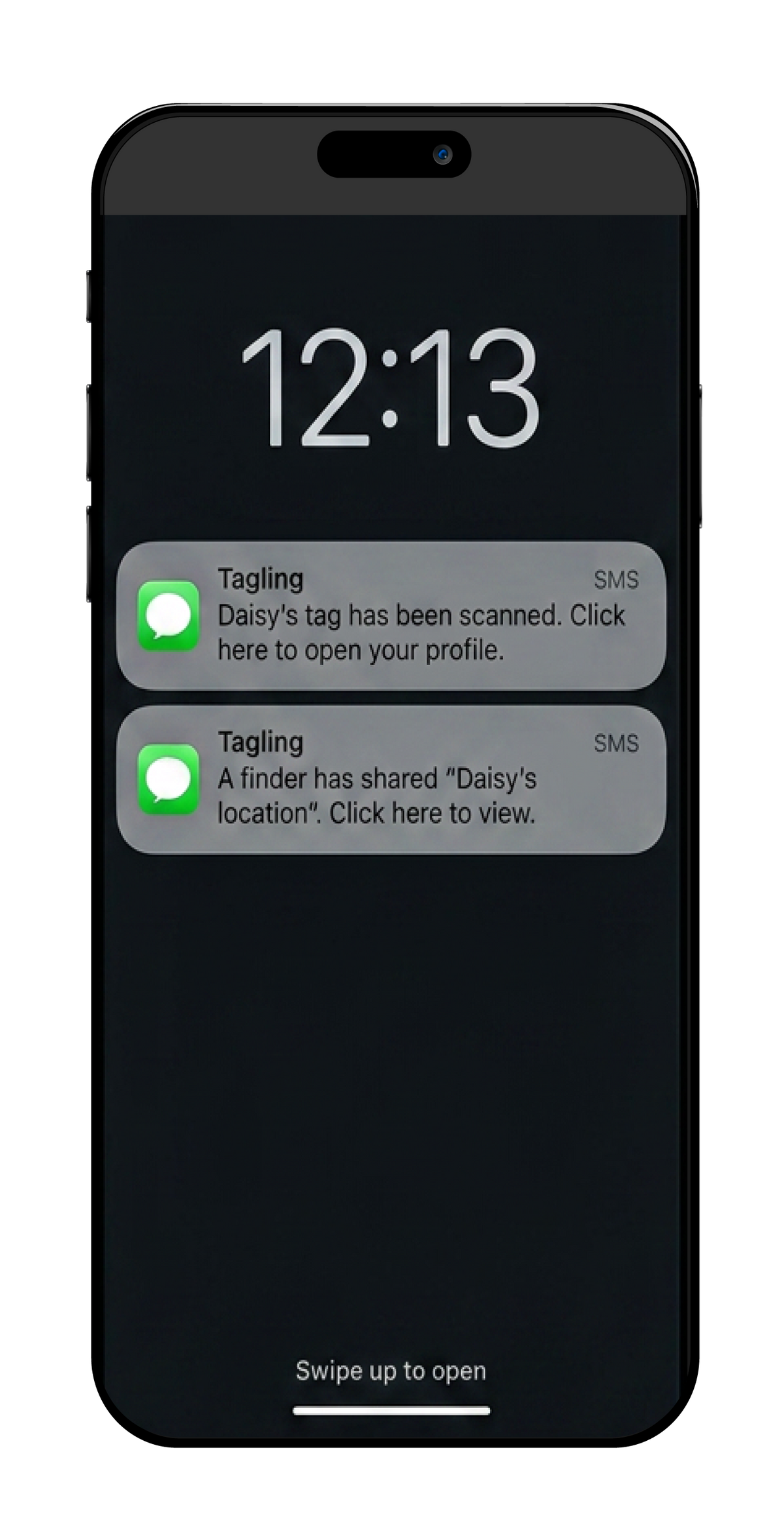
Phone showing a Tagling SMS notification arriving

Scan it again to confirm

Give the QR one more scan. Within seconds you should get an SMS and an email — the same alert a finder triggers when they scan a lost pet's tag. If nothing arrives, double-check your contact details and try again.

When someone scans your tag

Here's exactly what a finder sees, and exactly what you see, in the moments after a scan.

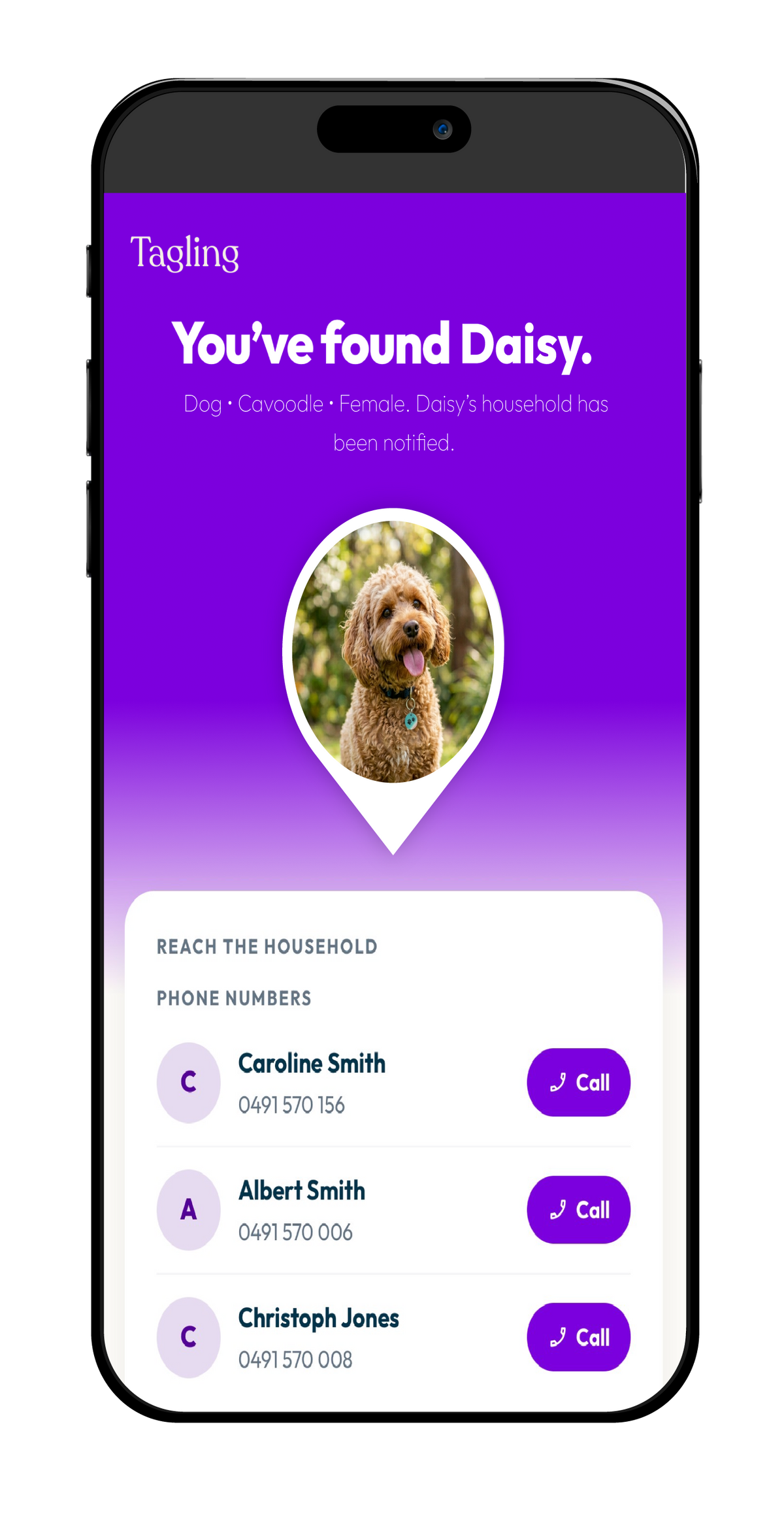
The finder-facing page on a phone showing the pet's name and a Contact button

The finder sees a friendly page

Any smartphone can scan the tag — no app, no sign-up, no account. A mobile page opens with your pet's name, your reassurance message, and a one-tap way to reach you.

If you have privacy mode activated, you will need to accept sharing contact details before the finder can see this. In the meantime, they can text you via secure chat.

Phone notification: 'Bella's tag was just scanned near Bondi Beach'

You get an instant alert

SMS and email reach every contact at once, with the finder's approximate location if they choose to share it. No delay, no waiting on office hours.

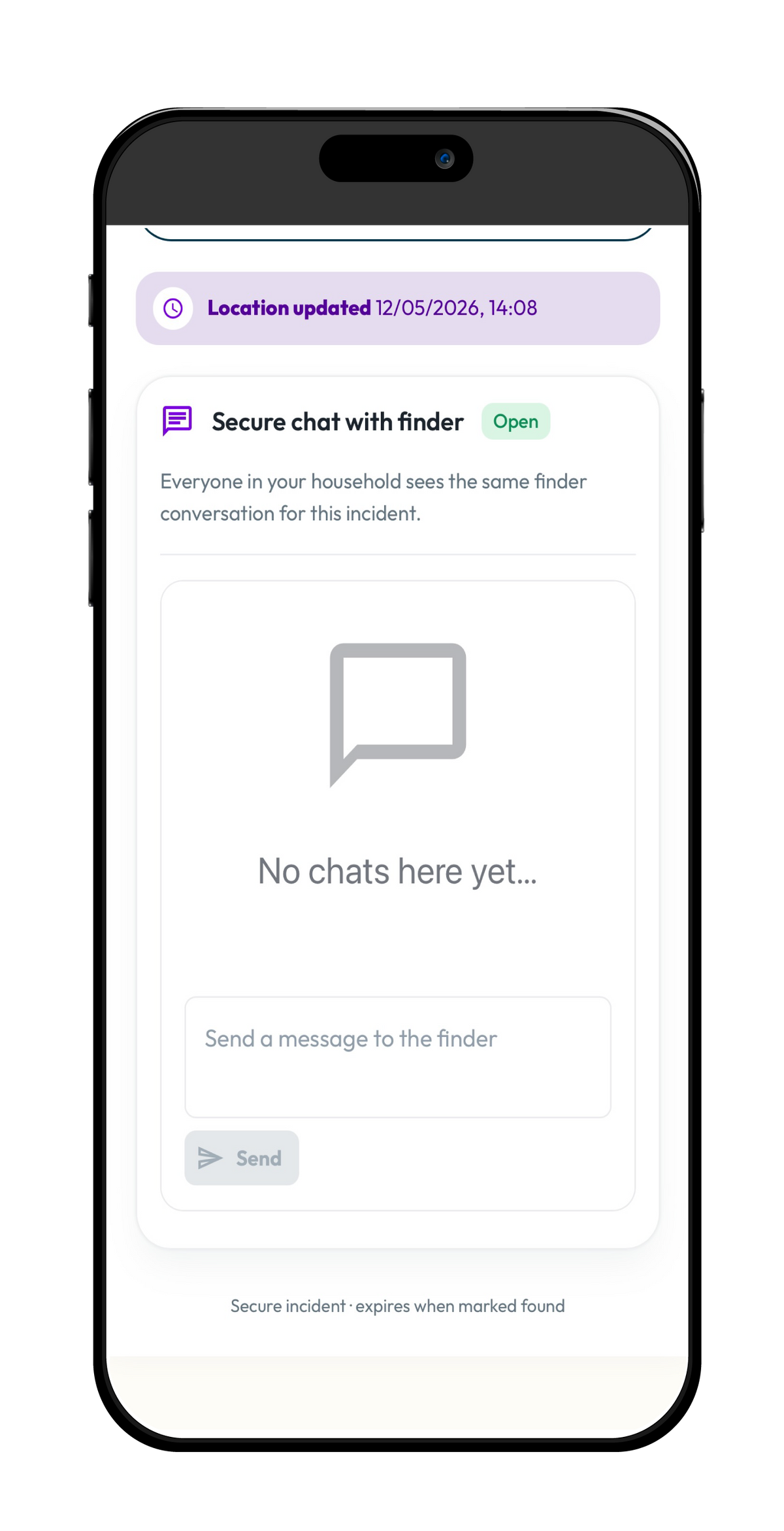
Anonymous chat thread between a finder and a pet parent

You and the finder can call each other, or if you want, you can chat anonymously

Open a private chat with the finder without sharing your number or email. Useful when they're across town and a meeting point needs to be agreed.

Log in to your account

Your dashboard is where you update photos, swap contacts, and manage every tag you own.

Browser address bar showing app.mytagling.com

Visit app.mytagling.com

Your account lives at app.mytagling.com — bookmark it on your phone and your laptop. The button at the top of every page on this site will take you there too.

Login screen with email field and 'Send link' button

Sign in with your email

Enter the email address you used when you first set up the tag. We'll send a one-tap login link — no password to remember.

Account dashboard showing pet profiles and tag management

Edit anything, anytime

Update your pet's photo, swap a contact, tweak privacy settings, or add a second tag — all from the same dashboard. Changes go live the moment you save.

How to activate privacy mode

Control exactly what a finder sees when they scan your tag. Useful if you'd rather not share your phone number, or want to keep some details private until you know who's helping.

Account dashboard with the list of pets

Open your pet's profile

Sign in at app.mytagling.com and open the pet you want to adjust. Privacy is set per pet, so you can keep one tag open and another private.

Privacy settings screen with the toggle in the on position

Turn privacy mode on

Find Privacy in the sidebar and toggle it on. With privacy mode on, your direct contact details are hidden from finders by default — they reach you through an anonymous chat instead.

Per-field privacy controls showing toggles for name, photo, and medical details

Choose what stays visible

Pick exactly which details a finder sees: your pet's name, photo, medical notes, or just the chat. Save when you're happy — changes go live the moment a finder scans.